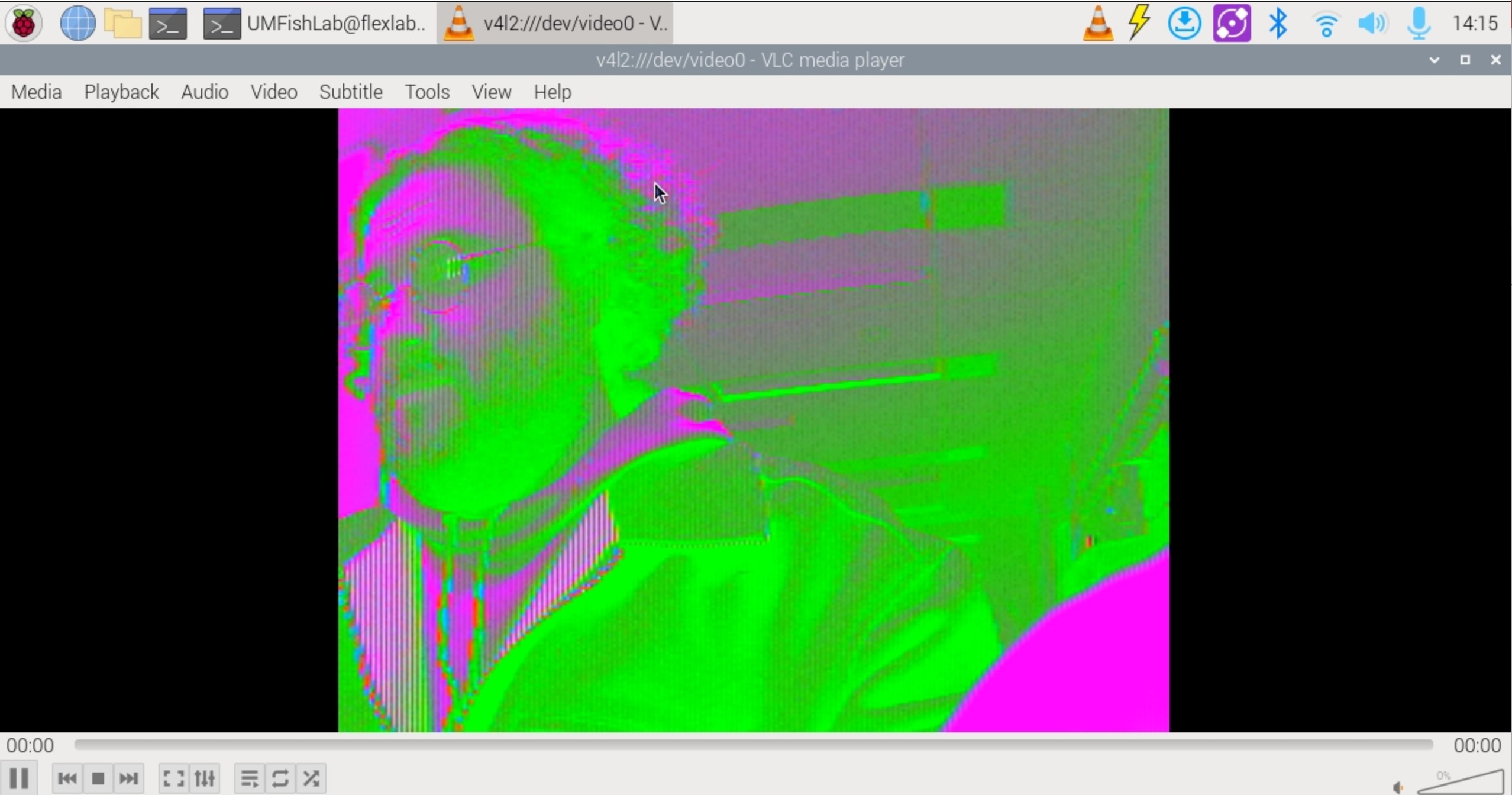
Hi all, having a weird issue with my new Arducam IMX462 USB camera on a Raspberry Pi. When I open the video feed in VLC, the entire picture is pink and green — totally corrupted colors. I’ve followed the UVC-Camera setup guide on the Arducam site but no luck.
I also tried looking for qv4l2 (or was it qv412? I saw it mentioned somewhere) but it seems like it’s not available to download anymore. Is there a compatibility problem between this camera and the Pi? Anyone else seen this pink/green mess in VLC?
Here’s what it looks like:
Camera is the Arducam 2MP IMX462 Day and IR Night Vision USB Camera with Metal Case.
That pink/green output is a known VLC compatibility issue with the IMX462 UVC camera — you’re not doing anything wrong. VLC’s rendering pipeline doesn’t play nicely with the raw video format these cameras output over UVC, hence the color corruption.
The tool you’re thinking of is qv4l2 (Video4Linux2 Test Utility), not qv412. It’s still very much available — you just need to install it from the apt repo. Try this:
sudo apt update
sudo apt install qv4l2
Then launch qv4l2 and select your camera device. It handles these UVC streams properly where VLC falls over. I’d recommend using qv4l2 as your primary viewer/recording tool for this camera on the Pi rather than VLC.
That did the trick — sudo apt update && sudo apt install qv4l2 and the video is crystal clear now. Thanks!
New question though: I’m planning to use this camera for circadian rhythm studies on animals, which means I need 24/7 continuous recording — daytime in color, nighttime in B/W. I’ve checked the datasheet and I can’t find any spec for maximum continuous runtime or thermal limits. Does anyone know if the IMX462 can handle being powered on and recording around the clock without overheating? If not, are there other Arducam UVC models that are rated for that kind of duty cycle?
Regarding 24/7 operation — honest answer is that Arducam has not performed an official burn-in or continuous runtime test on the IMX462 camera module, so there isn’t a published maximum runtime or thermal rating to point to.
That said, here’s what I’d recommend if you need to run it continuously:
Make sure the camera is in an area with good ventilation. The metal case will help with passive heat dissipation, but stagnant air around it won’t.
During your initial long-duration testing, keep an eye on the camera body temperature. If it’s too hot to touch comfortably after a few hours, you may want to add some airflow.
Run a proper multi-day dry run before committing to the actual experiment.
I’d be interested to hear how it holds up if you do go ahead with the 24/7 testing.
Quick update: ran one of the cameras for a full 24-hour stretch overnight and it didn’t burn out, so that’s promising. Temps felt warm but not alarming with some airflow in the room.
But now I’ve hit another wall. I need to record from multiple IMX462 cameras at the same time on a Raspberry Pi 4. Both cameras show up fine — /dev/video0 and /dev/video1 — and I can view both streams simultaneously in separate qv4l2 windows without a problem. But when I try to record with ffmpeg, only one recording process keeps running. I’ve tried opening separate terminal windows, running one ffmpeg command per terminal, but the second one just stops shortly after starting. Individual recording works fine though.
Am I hitting a USB bandwidth limit on the Pi 4, or is this a software thing?
This is actually a process management issue, not a USB bandwidth problem — especially since both streams work fine simultaneously in qv4l2.
When you run an ffmpeg command in a terminal, that terminal is tied up by the foreground process. Even if you open separate terminal windows, you might be running into device contention if both ffmpeg instances try to initialize the cameras at the exact same moment, or the second terminal’s command is getting interrupted somehow.
The cleaner approach is to send each ffmpeg process to the background explicitly using &. You can do both from a single terminal:
The & at the end pushes the process into the background so the terminal is free for the next command. Both should run concurrently. You can check they’re both alive with jobs or ps aux | grep ffmpeg.
And good to hear the overnight test went well — sounds like with decent ventilation you should be in good shape for the circadian study setup.