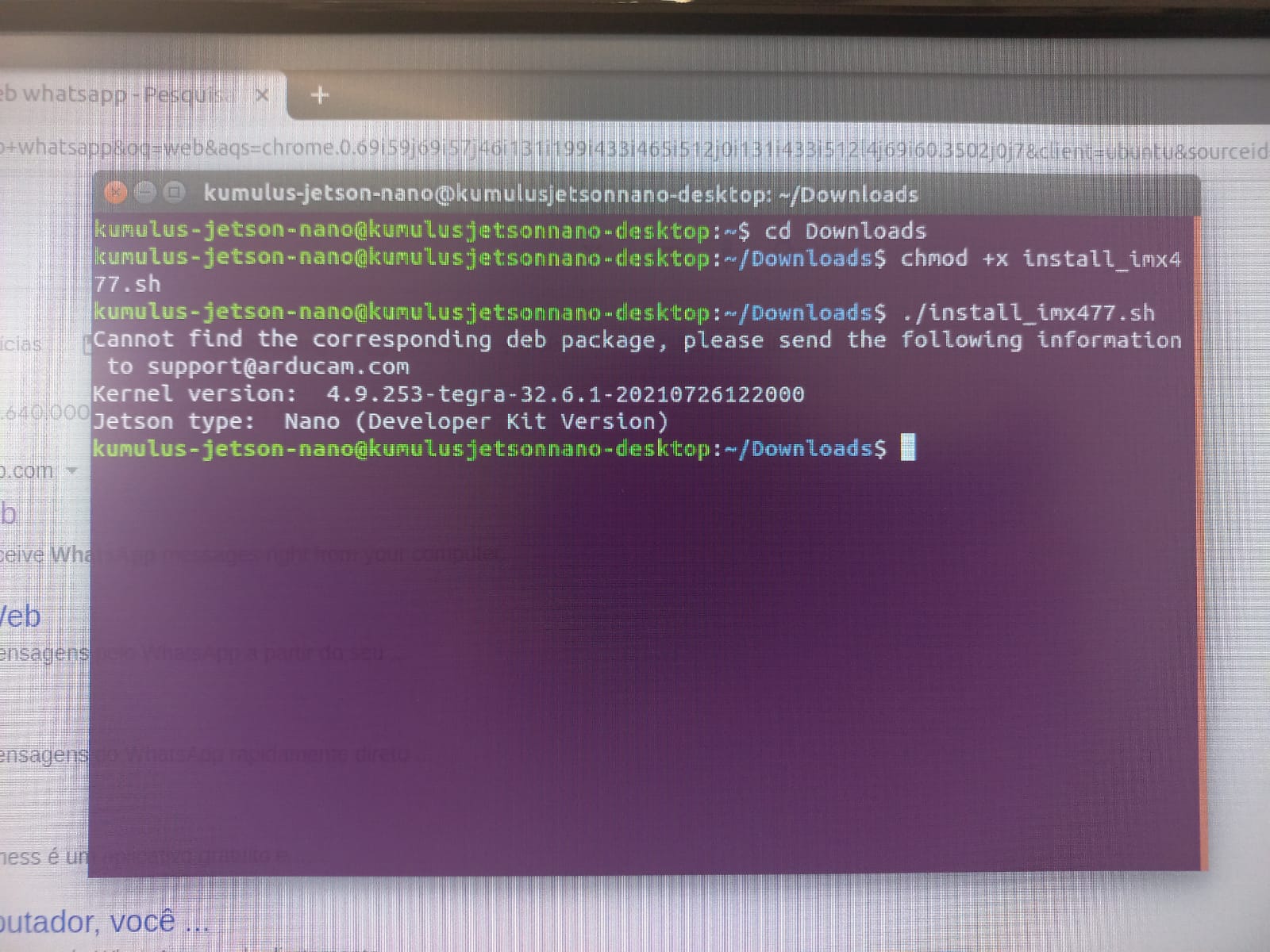
Hi everyone, I’m working on an object detection project and I’m trying to get a MIPI-CSI camera working on my Nvidia Jetson. I’m using the Arducam 12MP IMX477 HQ Camera Series for Jetson.
The problems started right after I powered on the Jetson module and began setting up the drivers following the Quick Start guide for the camera. When I tried to set up the drivers according to the URL in the guide, I couldn’t get the automatic driver installation to work at all.
I was able to download the current version of the driver from the URL, but when I performed the instructed actions from the manual, I ran into the problem shown in the attached screenshot. I don’t have any text logs, just the image. Any idea what’s going wrong?
Hi Paulo, thanks for the screenshot and the detailed description. Before we dig in, can you tell us a bit more about your setup so we can narrow this down?
Which exact Jetson module are you using (Jetson Nano, Xavier NX, etc.)?
What L4T / JetPack version is on the device?
Which guide/URL were you following for the driver install?
You can check the L4T version with:
cat /etc/nv_tegra_release
That will tell us the exact release so we can point you to the right install steps.
It’s a Jetson Nano. Here’s what I get from that command:
R32 (release), REVISION: 4.3, GCID: 25808146, BOARD: t210ref, EABI: aarch64, DATE: Tue Aug 25 03:42:31 UTC 2020
So L4T 32.4.3.
For the driver I followed the Arducam Quick Start guide and downloaded the driver from the URL listed there. Then I ran the install steps from the manual and got the error in the screenshot. I also double-checked all the hardware connections (camera, ribbon cable, CSI port) and everything looks physically fine, no bent pins or loose cable.
Thanks, that helps a lot. A couple of things I want to confirm before changing anything.
Can you paste the exact commands you ran for the installation, and the output you got in the terminal when it failed? Even a rough copy-paste of the last few lines would help, since the screenshot only shows part of it.
Also, just to be sure — did the automatic install script run at all (like did it start and then bail out), or did it fail immediately when you invoked it?
I tried the automatic install part first, following the guide. It didn’t complete — it errored out partway through, so I gave up on that route.
Then I went back and did the manual installation actions exactly as written in the manual. That’s when I got the problem in the screenshot. Here are roughly the last lines of what showed up:
That’s plenty to start. I think I already have a good idea of what’s happening, but let me run you through a quick check so we’re sure.
Can you tell me where you got the install script from — the exact page/URL you downloaded it from? I suspect the script you used may be an older one that predates L4T 32.4.3 support.
The reason I ask is that the driver install procedure changed for L4T 32.4.3 and later, and older scripts won’t build correctly against the newer kernel sources. That would line up with the make error you’re seeing.
I used the driver URL that the Quick Start guide pointed me to — I just followed the guide top to bottom and grabbed whatever version was listed there. So maybe I ended up with an old script without realizing it.
If that’s the case, what should I do instead? Do I need to uninstall the failed attempt first, or can I just rerun a newer script on top of it?
Yep, that’s the root cause. The install script referenced in the older guide is obsolete for your setup. For L4T 32.4.3 and later, the automatic install steps are different — the old script should be replaced with the latest one from the updated documentation.
I’ve sent you the latest installation script and the updated steps through private message, so check your inbox there and grab it.
In the meantime, please refer to this updated doc link, specifically the “Automatic Driver Installation” section (it’s only valid for L4T 32.4.3 and later versions, which matches your system):
Before rerunning anything, it’s cleanest to remove the partial build from the failed attempt first, then use the latest script fresh. The updated doc walks through that.
Got it, that makes sense — so the script I used was just too old for 32.4.3. I’ll clean up the failed build and use the newer script you sent plus the updated doc link. I’ll report back after I try it.
Quick question while I’m at it: after the driver installs successfully, is there anything else I need to do to confirm the camera is actually detected on MIPI-CSI before I start on the object detection side?
Right, the script was outdated — that’s the whole issue here, nothing wrong with your hardware or connections.
For verification after install: once the driver is in place and you’ve rebooted, check that the camera is detected with:
ls /dev/video*
You should see video0 (and possibly others depending on your setup). You can also test a quick capture through GStreamer or the Arducam sample provided in the docs to confirm frames are coming through on the MIPI-CSI interface.
To summarize where we’re at: the automatic driver install failed and the manual steps errored out because the install script you were using was obsolete for L4T 32.4.3. The fix is to download and use the latest installation script from the updated documentation link above (the automatic driver installation section, valid only for L4T 32.4.3 and later). Clean out the partial build from the previous attempt, then rerun with the new script. Let us know how it goes once you’ve tried it.